
iPhones are known for their robust security features, but no device is completely immune to potential threats. In the age of increasing cyberattacks, malware, and phishing scams, understanding how to protect your iPhone is essential. This article will guide you through the process of checking your iPhone for viruses using the built-in Settings app. We’ll explore the steps, signs of malware, and tips to keep your device secure. By the end of this guide, you’ll feel confident in diagnosing and managing potential threats on your iPhone.
Can iPhones Get Viruses?
Although iPhones are generally secure, they are not invincible. Apple’s iOS operating system is designed with advanced security mechanisms, such as app sandboxing and a strict App Store review process. These measures make it difficult for traditional viruses to affect iPhones. However, threats like spyware, phishing, and malicious apps can still pose risks, especially if your device is jailbroken or you download apps from third-party sources.
For a deeper dive into whether iPhones can get viruses and the types of threats they may face, check out this detailed guide: Do iPhones Get Viruses?.
Signs Your iPhone Might Have Malware
Before diving into how to check for viruses, it’s essential to recognize the warning signs of malware or unusual activity on your iPhone:
- Unusual Battery Drain: If your battery depletes faster than usual, it may indicate background malware activity.
- Overheating: Persistent overheating could signal unauthorized processes running in the background.
- Pop-ups or Redirects: Frequent pop-ups or redirects to unfamiliar websites may suggest adware or spyware.
- Unfamiliar Apps: Apps you don’t remember installing could be a sign of a security breach.
How to Check iPhone for Virus in Settings
Apple’s Settings app provides several tools and options to investigate potential issues. Here’s a step-by-step guide to How to Check iPhone for Virus in Settings:
How to Change Font Style on iPhone Without App (2026 Guide)1. Review Your Battery Usage
The Settings app can help you identify apps consuming an unusual amount of battery, which could be a sign of malware.
- Open the Settings app.
- Scroll down and select Battery.
- Review the list of apps under “Battery Usage by App.” Look for apps consuming excessive power, especially those you don’t recognize.
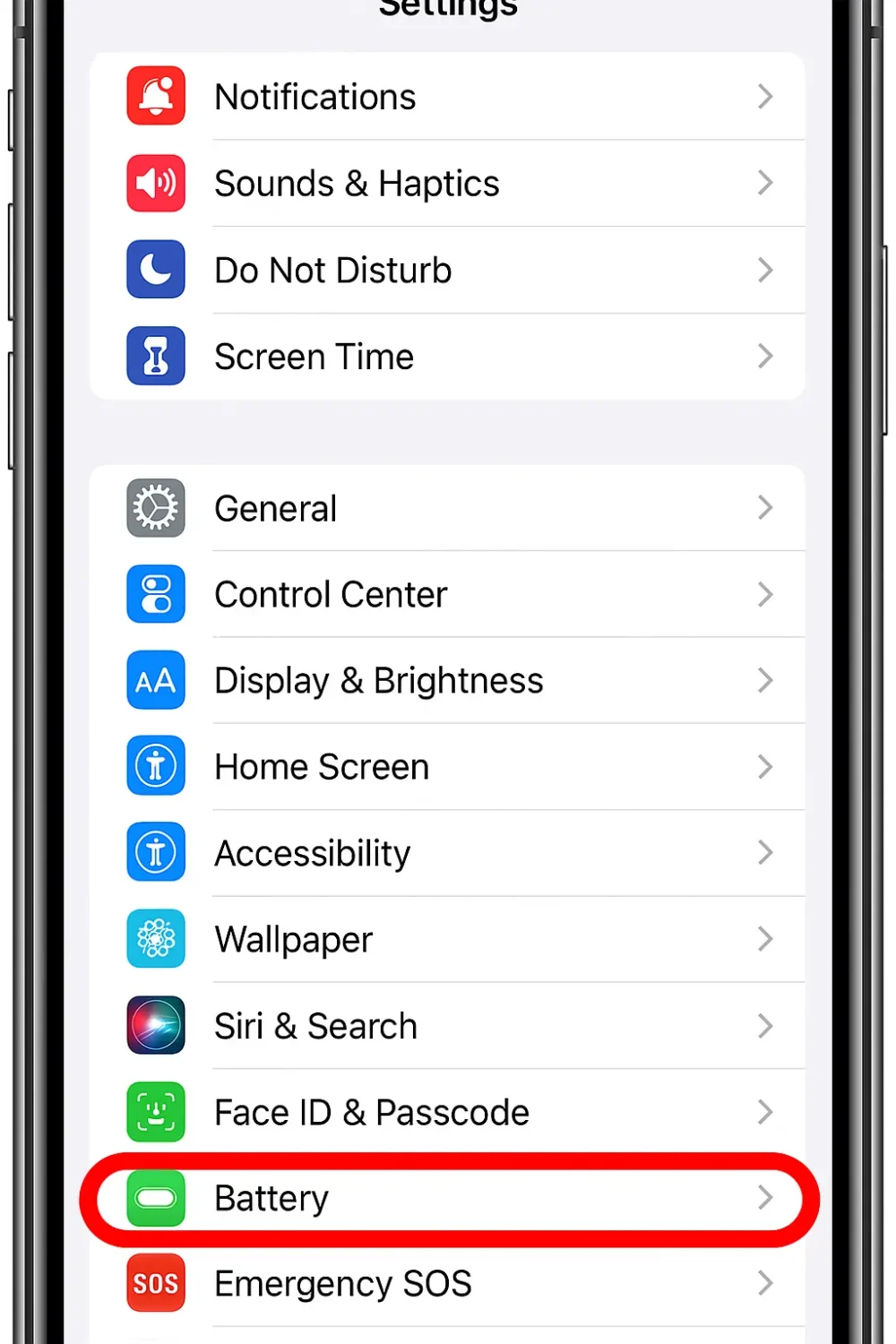
If you notice any suspicious apps, consider deleting them immediately.
2. Check for Unfamiliar Apps
Malware often installs itself as an app on your device. To spot any unfamiliar apps:
How to Record Screen with iPhone: A Step-by-Step Guide- Navigate to Settings > General > iPhone Storage.
- Review the list of installed apps. Look for apps you didn’t install or apps with unusual names.
- If you find something suspicious, tap the app and select Delete App.
3. Analyze Data Usage
Excessive data usage could indicate malware transmitting information without your knowledge.
- Go to Settings > Cellular (or Mobile Data).
- Scroll through the list of apps to see their data usage.
- If an app you don’t recognize is consuming significant data, delete it.
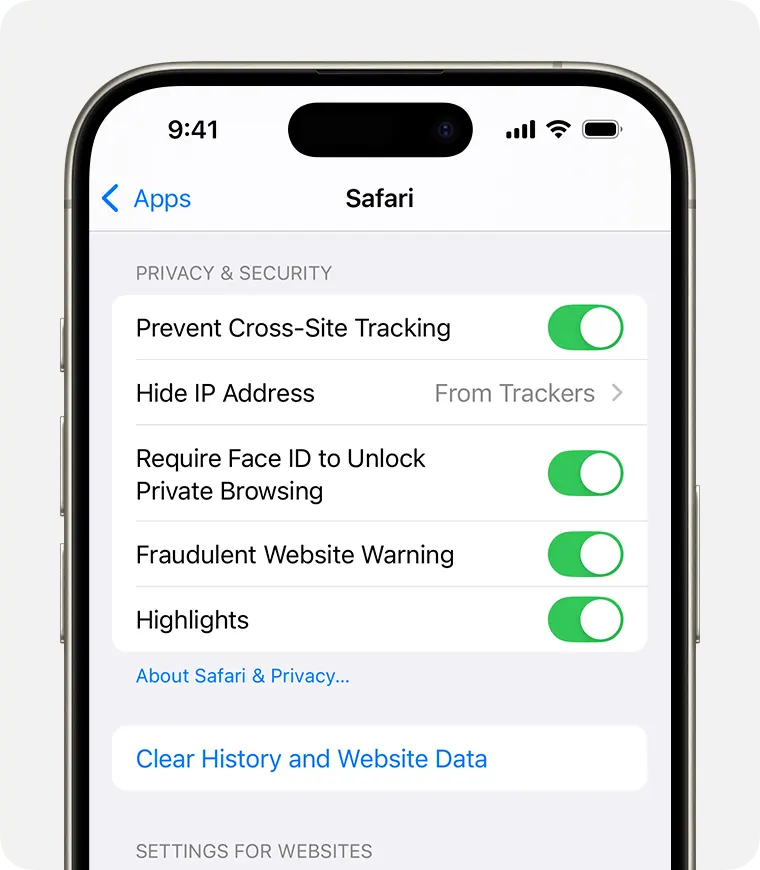
4. Inspect Safari Settings
Adware and spyware often impact Safari. To check and clear potential threats:
- Open Settings > Safari.
- Scroll down and select Clear History and Website Data.
- Turn on Block Pop-ups and enable Fraudulent Website Warning for additional security.
5. Check Device Permissions
Malicious apps might gain unauthorized access to sensitive features like your camera, microphone, or location.
Difference Between Apple Stores and Authorized Resellers- Go to Settings > Privacy & Security.
- Review permissions for each category (e.g., Camera, Microphone, Location Services).
- Revoke permissions for suspicious apps.
Should You Reset Your iPhone?
If you’ve followed the steps above and still suspect malware, resetting your iPhone may resolve the issue. A factory reset removes all data and settings, including potential threats. Here’s how to do it:
- Open Settings > General > Transfer or Reset iPhone.
- Tap Erase All Content and Settings.
- Follow the prompts to confirm.
Before resetting, ensure you back up your iPhone using iCloud or iTunes to avoid losing important data.
How to Protect Your iPhone from Malware
Prevention is the best defense against malware. Follow these tips to keep your iPhone secure: How to Check iPhone for Virus in Settings.
How to Restore an iPhone to Factory Settings in Minutes- Avoid Jailbreaking: Jailbreaking removes Apple’s built-in security measures, exposing your device to potential threats.
- Update iOS Regularly: Apple frequently releases security updates to patch vulnerabilities. Always keep your iPhone updated.
- Download Apps from the App Store Only: Avoid third-party app stores, as they often host malicious software.
- Enable Two-Factor Authentication (2FA): Add an extra layer of security to your Apple ID by enabling 2FA.
- Use Strong Passwords: Use unique, complex passwords for your Apple ID and other accounts.
- Install a Trusted Security App: While iPhones don’t require antivirus software, you can use a reputable security app to monitor for threats.
FAQs About iPhone Viruses
Do I Need Antivirus Software for My iPhone?
Generally, antivirus software isn’t necessary for iPhones due to Apple’s robust security features. However, if you frequently use public Wi-Fi or want added peace of mind, you can install a trusted security app.
What Should I Do If I Suspect Malware?
If you suspect malware, follow these steps:
- Delete suspicious apps.
- Clear your browser data.
- Reset your iPhone if necessary.
- Update to the latest iOS version.
Can iPhones Get Viruses from Websites?
While rare, iPhones can be affected by malicious websites, especially if you interact with phishing links or download unauthorized files. Always be cautious when browsing and avoid clicking on suspicious links.
Conclusion
Understanding how to check your iPhone for viruses in Settings is a valuable skill in today’s digital landscape. By reviewing battery usage, inspecting data consumption, and removing suspicious apps, you can keep your device secure. Additionally, adopting preventive measures like updating your iOS and avoiding third-party apps will help protect your iPhone from future threats. For more insights on iPhone security and potential threats, visit this guide: Do iPhones Get Viruses?. Stay vigilant and proactive to enjoy a safe and seamless iPhone experience.