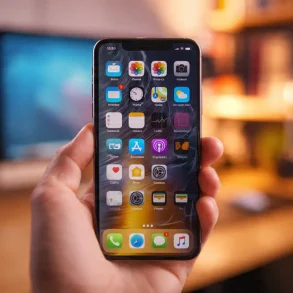

Resetting your iPhone to factory settings is something a lot of people do. Whether it’s to fix some software glitches, get it ready to sell, or just to wipe everything and start fresh, it can be super helpful. But here’s the catch: usually, you’ll need the Apple ID linked to the phone. That can be a hassle if you can’t remember the info or don’t have it on hand. The good news is there are ways to do a factory reset without needing the Apple ID, although there are some conditions to keep in mind. In this guide, we’ll go over a few different methods, talk about some challenges you might face, and share tips to make the whole process go smoothly.
Introduction to Restoring iPhone to Factory Settings
A factory reset, also known as restoring to factory settings, wipes all data from your device and returns it to the way it was when it first left the store. This means all your photos, apps, settings, and personal information are erased, leaving the iPhone clean and ready for a fresh start.
There are many reasons why someone might want to factory reset their iPhone. For instance:
- You’re selling or giving away your iPhone and want to protect your personal information.
- You’re trying to fix software issues like freezing, crashing, or unresponsiveness.
- You want to start fresh and remove all unnecessary clutter from your device.
However, resetting an iPhone typically requires entering your Apple ID and password. This is because Apple ID is tied to the “Find My iPhone” feature, which helps prevent unauthorized access. Without these credentials, restoring your iPhone can be challenging.
Situations Where You May Not Have an Apple ID
There are several scenarios where you might not have access to the Apple ID associated with your iPhone:
How to Restore an iPhone to Factory Settings in Minutes- Forgetting Your Apple ID Credentials: It’s common to forget your Apple ID or password. This can happen if you haven’t used the account in a long time or didn’t store the details securely.
- Purchasing a Second-Hand iPhone: If you buy a used iPhone and the previous owner didn’t remove their Apple ID, the device will still be linked to their account.
- Locked Out Due to Security Issues: If too many incorrect login attempts are made, Apple may lock the Apple ID for security reasons, leaving you unable to reset the device.
Preparations Before Resetting
Before attempting to restore your iPhone without an Apple ID, it’s important to prepare properly:
Back Up Your Data
- Use iCloud or iTunes to save your data before resetting the iPhone. This ensures you don’t lose important files, photos, or messages.
- If you’re unable to back up via iCloud because of the Apple ID issue, try connecting the iPhone to a computer with iTunes installed.
Check “Find My iPhone” Status
- “Find My iPhone” is a security feature that prevents unauthorized resets. If this feature is turned on, you’ll need the Apple ID password to proceed.
Verify Compatibility
- Ensure your iPhone and the computer you’re using are compatible with the reset methods you choose, such as iTunes or recovery mode.
Methods to Restore iPhone Without Apple ID
Using iTunes on a Computer
- Connect your iPhone to a computer with iTunes installed.
- Open iTunes and select your device.
- Click on “Restore iPhone.”
- Follow the on-screen instructions to complete the reset.
Troubleshooting Common Errors:
- If iTunes doesn’t recognize your device, try using a different cable or USB port.
- Update iTunes to the latest version to avoid software issues.
Using Recovery Mode
Recovery Mode allows you to reset your iPhone even if you’re locked out.
Difference Between Apple Stores and Authorized Resellers- Turn off your iPhone.
- Connect it to a computer while holding the appropriate button:
- For iPhones with Face ID: Press the Side button.
- For iPhones with a Home button: Press and hold the Home button.
- Open iTunes, and it will detect your iPhone in Recovery Mode.
- Click “Restore” to reset the device.
Using DFU (Device Firmware Update) Mode
DFU mode is a deeper reset option than Recovery Mode.
- Connect your iPhone to a computer and open iTunes.
- Place the iPhone in DFU mode:
- For iPhones with Face ID: Press and release the Volume Up button, then the Volume Down button, and hold the Side button until the screen turns black. Hold Volume Down and the Side button for 5 seconds, then release the Side button while holding Volume Down.
- iTunes will detect the iPhone in DFU mode. Click “Restore.”
Using Third-Party Software
Third-party tools like iMyFone LockWiper and Tenorshare 4uKey can bypass Apple ID and reset your iPhone. These software solutions are user-friendly and often come with step-by-step guides.
Pros:
How to Check iPhone for Virus in Settings: Easy Steps- No Apple ID required.
- Easy to use.
Cons:
- Some tools require payment.
- Risk of data breaches if using unreliable providers.
If you’d like a more detailed walkthrough with step-by-step screenshots, you can refer to this comprehensive guide on how to restore an iPhone to factory settings. This resource covers common troubleshooting tips and answers frequently asked questions, making it a valuable companion as you reset your device.
Common Challenges and Their Solutions
Error Messages
- If you see “Unable to restore iPhone,” ensure your iPhone is connected properly and has enough battery.
- Restart your computer and try again.
Locked Out of Recovery or DFU Mode
- To exit these modes, force restart your iPhone by pressing and holding the appropriate buttons for your model.
Untrusted Connections with iTunes
- If iTunes doesn’t recognize your iPhone, ensure you’ve selected “Trust This Computer” on your device.
Related Topics and Tips
Recovering Your Apple ID
- Visit Apple’s Apple ID recovery page to reset your password.
- Answer security questions or use your email to recover access.
Understanding Activation Lock
- Activation Lock is tied to “Find My iPhone” and protects stolen devices. It’s crucial for security but can be a challenge if you don’t have the Apple ID.
Removing Apple ID Before Selling
- Always sign out of your Apple ID and disable “Find My iPhone” before selling your device.
FAQs (Frequently Asked Questions)
- Can I reset my iPhone without the Apple ID password?
- Yes, using Recovery Mode, DFU Mode, or third-party software.
- Will a factory reset remove iCloud lock?
- No, iCloud lock is tied to the Apple ID and requires the credentials to disable.
- Is it possible to reset an iPhone without a computer?
- No, most methods require a computer unless you have the Apple ID credentials.
- How long does the reset process take?
- It usually takes 15-30 minutes, depending on the method and device.
Key Warnings and Things to Keep in Mind
- Legal Risks: Resetting a stolen or lost device without the owner’s consent is illegal.
- Authorization: Ensure you have permission to reset the iPhone.
- Apple ID Security: Write down your Apple ID and password and keep them safe to avoid future issues.
Additional Insights and Best Practices
- Keep Software Updated: Regular updates can prevent software issues that require a factory reset.
- Secure Your Apple ID: Use strong passwords and enable two-factor authentication.
- Contact Apple Support: If all else fails, reach out to Apple for assistance.
Conclusion
Restoring your iPhone to factory settings without an Apple ID can be tricky, but it’s possible using methods like iTunes, Recovery Mode, DFU Mode, or third-party tools. Always take precautions like backing up your data and ensuring you have the proper authorization. Following these steps carefully will help you reset your iPhone while avoiding unnecessary complications. Protect your device and Apple ID credentials in the future to ensure a smooth experience!
Do iPhones Get Viruses? Here’s What You Need to Know