
If you have ever tried to find a simple switch to change your iPhone’s system font to something like Comic Sans or Helvetica Neue, you have likely hit a wall. Unlike Android’s open ecosystem, Apple’s iOS design philosophy prioritizes uniformity and readability, locking the system-wide typeface to its proprietary San Francisco font. For years, this has left users searching for workarounds.
However, 2026 brings a nuanced landscape for personalization. While you still cannot swap the entire operating system’s font without jailbreaking, Apple has introduced powerful native tools in iOS 18 and iOS 19 that allow for significant typographic customization in specific areas. From the highly customizable Lock Screen to the new “Hover Typing” accessibility feature, you now have more control over your text aesthetics than ever before.
This guide explores every legitimate method to change font styles on an iPhone without installing sketchy third-party apps. We will dive into native settings that alter text weight and size, hidden accessibility tricks that preview custom fonts while you type, and the latest rich text formatting features now built directly into iMessage and Mail.
Can You Change the System-Wide Font on iPhone?
The short answer is no. You cannot officially change the system-wide font on an iPhone to a custom typeface (like script or handwriting styles) without jailbreaking the device. The iOS interface relies on San Francisco (SF Pro), a font designed specifically for legibility across Apple’s Retina displays.
Understanding Apple’s Design Constraints vs. Android
Apple enforces this restriction to ensure a consistent user experience (UX) and to prevent interface bugs. System fonts are deeply integrated into the dynamic layout of iOS apps. Replacing them with a non-standard font could cause text to overlap, buttons to break, or essential information to become unreadable. Unlike Android, which supports “themes” that can overlay system assets, iOS creates a “walled garden” where reliability trumps radical customization.
Do iPhones Get Viruses? Here’s What You Need to KnowHowever, you can change the appearance of the text locally in three key ways:
- Lock Screen: Fully customizable font styles and colors for the clock.
- Communication: Native formatting (bold/italics) and Unicode tricks for messages.
- Readability: System-wide weight adjustments and dynamic sizing.
Method 1: Changing Font Style on the iPhone Lock Screen
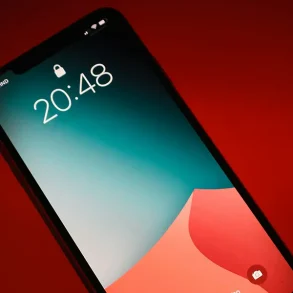
The most visible place you can apply a custom font style is your Lock Screen. Since iOS 16, and refined in the latest iOS 18/19 updates, Apple allows users to choose from several distinct typefaces for the time display.
Step-by-Step Native Lock Screen Font Customization
You do not need an external app to do this; it is built directly into the wallpaper engine.
How to Record Screen with iPhone: A Step-by-Step Guide- Unlock your iPhone but stay on the Lock Screen (do not swipe up to go home).
- Long-press anywhere on the screen until the “Customize” menu appears.
- Tap “Customize” and select the Lock Screen (the one on the left).
- Tap the Clock widget. A “Font & Color” panel will slide up.
- Choose a Font: Swipe through the available typeface options. You will find styles ranging from thin, modern sans-serifs to heavy, slab-serif numerals.
- Adjust Weight: Use the slider (if available for that font) to make the text thinner or bolder.
- Select a Color: Tap a color dot at the bottom to change the font color. Tap the rainbow wheel for a custom hex code.
- Tap “Done” in the top right corner to save your new aesthetic.
Method 2: Using Online Font Generators for Social Media & Messages
If you want to use “fancy” fonts in your Instagram bio, TikTok captions, or WhatsApp messages, you must use a Unicode font generator. This method works because you are not actually changing the font file; you are swapping standard letters for mathematical symbols that look like different fonts.
How Unicode Characters Work for Stylish Text
Computers use a standard called Unicode to handle text. Inside this standard are thousands of characters that include alphanumeric variations like 𝐁𝐨𝐥𝐝, 𝐼𝑡𝑎𝑙𝑖𝑐, 𝔊𝔬𝔱𝔥𝔦𝔠, and ᑕIᖇᑕᒪEᗪ text. Your iPhone reads these as valid symbols, not as a new font file, allowing them to appear in almost any text field.
Copying and Pasting Fancy Fonts into Instagram, TikTok, and iMessage
- Open your web browser (Safari or Chrome) and search for “Unicode font generator” or visit a reputable site like LingoJam or Igfonts.
- Type your desired text into the input box.
- Scroll through the results to find a style you like (e.g., typewriter, cursive, outline).
- Select and Copy the generated text.
- Paste it directly into your social media bio, caption, or text message.
Note: Use these sparingly. Screen readers for visually impaired users often cannot read these characters effectively (e.g., they might read “𝐁𝐨𝐥𝐝” as “Mathematical Bold Capital B…”).
How to Restore an iPhone to Factory Settings in MinutesMethod 3: Adjusting Text Weight and Size via Accessibility
While you cannot swap the font family, you can significantly alter the weight and size of the system font to make your iPhone feel different and more readable.
Enabling Bold Text and Dynamic Type Settings
These settings apply system-wide, affecting Settings menus, native apps, and third-party apps that support Dynamic Type.
- Go to Settings > Display & Brightness.
- Text Size: Tap “Text Size” and drag the slider to adjust the base size of the font.
- Bold Text: Toggle the “Bold Text” switch to On. Your screen will briefly flash as the system redraws all text with a thicker, more commanding stroke.
For even more granular control:
How to Clear Cache for iPhone: Boost Speed in Seconds- Navigate to Settings > Accessibility > Display & Text Size.
- Here you can enable Larger Text for sizes beyond the standard limits.
Using Hover Typing for Temporary Font Previews
A lesser-known feature in iOS 18 and newer is Hover Typing. Designed for accessibility, it creates a large preview window of what you are typing in a font of your choice.
- Go to Settings > Accessibility > Keyboards & Typing.
- Enable Hover Typing.
- Tap Font inside the Hover Typing menu.
- Select a unique font like Chalkduster, Bradley Hand, or Party LET.
- How to use: Whenever you type in a text field, a large panel will appear above your keyboard displaying your text in that custom font.
- Note: This only changes your view while typing. The recipient will still receive standard text.
Method 4: New Text Formatting Features in iMessage and Mail
With the release of iOS 18, Apple finally brought desktop-class text formatting to the iPhone’s native communication apps. You no longer need workarounds to send emphasized text.
Applying Bold, Italics, and Underline Natively in iOS 18+
You can now format text directly inside the iMessage text input bar:
- Type your message in the Messages app.
- Select the text you want to format (double-tap a word or tap and hold).
- Tap the “A” icon (Text Effects) in the suggestion bar above the keyboard.
- Choose Bold, Italic, Underline, or
Strikethrough. - Bonus: You can also apply animated effects like “Explode” or “Ripple” from this same menu.
These changes are visible to any recipient using a modern version of iOS.
Why You Should Avoid Configuration Profiles for Font Changes
You may encounter websites promising to install “System Fonts” via a Configuration Profile. Do not do this.
- Security Risk: Configuration profiles grant root-level access to your device settings. Malicious profiles can redirect your web traffic, steal passwords, or install hidden certificates that compromise your encrypted data.
- Ineffectiveness: Even “legitimate” font profiles usually only make the font available for use in design apps (like Pages or Photoshop for iPad), not the system interface itself. They will not change your Settings menu font.
- Battery Drain: Poorly coded profiles can run background processes that negatively impact battery life and system performance.
Frequently Asked Questions
No. There is no hidden “developer menu” or secret switch in iOS 19 or earlier that unlocks system-wide font changing. Any video claiming otherwise is likely using a jailbroken device or a video editing trick.
To change the actual system font (e.g., changing the Settings menu from San Francisco to Times New Roman), yes, jailbreaking is required. However, jailbreaking voids your warranty, breaks security features like Face ID and Apple Pay, and exposes your phone to malware. It is highly discouraged for the average user in 2026.
Using native methods like Bold Text or Lock Screen font customization has zero impact on battery life. However, using “font keyboards” or third-party apps that require “Full Access” can theoretically increase battery usage slightly as they run additional processes to process your keystrokes.