

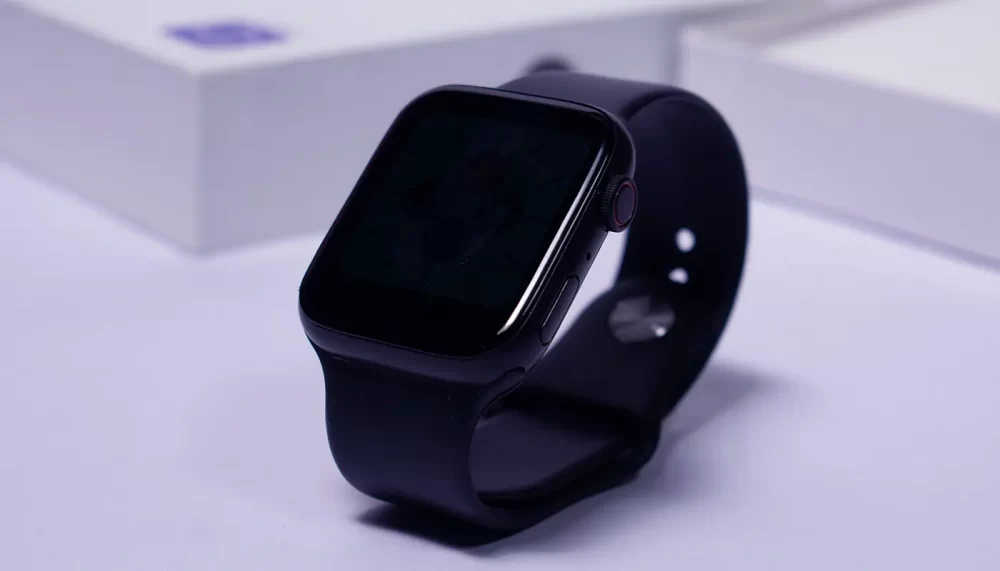
It’s not uncommon for Apple Watch users to encounter the flashing Apple logo issue. This problem can be both frustrating and concerning as it prevents you from accessing your watch’s features and may indicate an underlying issue with your device. The Apple Watch is an incredible technological creation that has streamlined our lives in numerous ways. However, like all electronic devices, it’s not immune to glitches and errors. One such issue that many Apple Watch users have encountered is the Apple Watch flashing Apple logo.
In this article, we’ll explore some potential causes of the flashing Apple logo and provide step-by-step solutions to help you fix the problem and get back to enjoying your Apple Watch. So let’s dive into the world of smartwatches and resolve this flashing logo predicament!
Understanding the Flashing Apple Logo Issue
The flashing Apple logo is a common issue that can occur on any model of the Apple Watch. It is characterized by the device getting stuck on a screen with an intermittently flashing or pulsating logo. This usually occurs during startup but can also happen while using the watch.
Why Does It Happen?
There are several reasons why your Apple Watch may be experiencing this issue:
- Software Glitches: The most common cause of the flashing logo is a software glitch or bug that prevents the watch from booting up correctly.
- Incomplete Software Update: If your device gets interrupted during a software update, it can cause issues with system files and lead to the flashing logo problem.
- Corrupted System Files: Damaged or corrupted system files within your watch’s operating system can prevent it from starting up properly.
- Hardware Issues: In rare cases, hardware problems like a damaged motherboard or battery can cause your device to malfunction.
Troubleshooting Your Device: Step-by-Step Guide
Before jumping into more advanced solutions, there are some basic troubleshooting steps you should try.How Can Audience Segmentation Enhance Your Inbound Marketing Efforts?
Step 1: Hard Reset Your Device
Performing a hard reset often resolves minor software glitches and could potentially resolve your flashing logo issue.
- Press and hold both the side button (the one below the Digital Crown) and the Digital Crown together.
- Continue holding both buttons until you see the Apple logo appear on the screen.
- Release the buttons, and your watch should restart.
Step 2: Charge Your Device
In some cases, a low battery might cause issues with your Apple Watch. Make sure your watch is charged properly before attempting other solutions.
- Attach the charger to the back of your device, ensuring it’s properly connected.
- Allow your watch to charge for at least an hour before trying to power it on again.
Step 3: Check for Software Updates
If you’re still experiencing the flashing logo issue after trying a hard reset and charging your device, you may need to update its software.
- Open the Watch app on your iPhone.
- Tap My Watch and then General.
- Select Software Update and follow any prompts to install updates if they are available.
Advanced Solutions
If basic troubleshooting doesn’t resolve the issue, consider these more advanced solutions:10+ Musically Alternative That Will Make You Love Music Again
Solution 1: Erase Your Device and Restore from Backup
A factory reset will erase all data on your Apple Watch and return it to its original settings. This can potentially fix any corrupted system files causing the flashing logo issue.
- Open the Watch app on your iPhone.
- Tap My Watch and then General.
- Select Reset, followed by Erase Apple Watch Content and Settings.
- Confirm that you want to erase your device; this process may take several minutes.
- Once erased, you’ll have the option to restore from a backup or set up as new.
Warning: Performing a factory reset will delete all data from your device, so be sure you’ve backed up any important information before proceeding.
Solution 2: Seek Professional Assistance
If none of these solutions work, there could be a hardware problem with your Apple Watch that requires professional assistance from an authorized repair center or Apple Support.
Prevention Tips
To minimize future occurrences of this issue:ClickFunnels vs WordPress: Which Is Best in 2024?
- Keep your Apple Watch software up to date.
- Avoid interrupting software updates.
- Periodically back up your device data using the Watch app on your iPhone.
- Protect your watch from physical damage, extreme temperatures, and moisture.
In conclusion, while the flashing Apple logo issue can be frustrating, there are several troubleshooting steps and solutions you can try to resolve yourself. However, if all else fails, seeking assistance from a professional is recommended to ensure your device’s hardware remains intact and functional.